Showing posts with label Ultimate Sixaxis Guide. Show all posts

STEP 1 - Your Device Must be Rooted!

OK, Lets get Started!
In order for the Sixaxis Controller App to work your device must be 'Rooted'. I am not going to go into Rooting here as every device is different and there are plenty of resources out there to help you.

If you don't know what this means check out this article from Android Authority, 'Rooting for Dummies'
I highly recommend searching the XDA Developers Forums for specific instructions on rooting your particular device. 

Feel free to leave a comment or post a question on our Forum if you are unsure about rooting your particular device, I, or other helpful members of this blog may be able to point you in the right direction! :-)

Happy Rooting!

STEP 2 - Sixaxis Compatibility Checker! Is your Device Compatible!


Ok, so your device is Rooted ;-) Nice... You now need to check to see if your device is compatible with the Sixaxis Controller App. To do this you need to download the 'Sixaxis Compatibility Checker' from the Android Market.


Once installed, Open it. You will receive the following message:


Click OK. Then click 'Start'.


You bluetooth will automatically start, and, all being well you will receive the following message:


Click OK. Check that your 'Local Bluetooth Address' is displayed on the bottom left of your screen:


Before you get exited and head off to the Android Market to buy the Sixaxis Controller App you should do a final check to see if you can pair your Playstation Controller with your Device. You have a couple of options here, so check out the next step... Step 3 - Pairing the Controller With Your Device!

STEP 3 - Pairing Your Sixaxis Controller With Your Device!


In order for your Controller and your tablet to 'communicate' with each other you need to 'pair' your Sixaxis Controller to your phone or tablet. To do this you must update the controllers 'Bluetooth Master Address' with the Local Bluetooth Address shown in the Sixaxis Pair Tool application.


You have a couple of options here. There are other methods but these 2 are probably the simplest.

1. Pairing Directly via USB.
If you are running Android 3.1+ and have a USB port on your tablet you can plug your sixaxis controller into it using the normal Playstation Mini USB cable and pair your device directly. If you do not have a USB port then you will need to pair using the Sixaxis Pair Tool.

2. Pairing Using the 'Sixaxis Pair Tool'.
For this method you need to have a PC or Laptop handy. You will need to download the Sixaxis Pair Tool from the Dancing Pixel Studios website, and you still need a Mini USB cable. You can then pair using the PC Application.

NOTE!
If you plan to some serious gaming on your android device its a good idea to have a dedicated controller!

Why?
Your android device is only paired only until you connect it back to your PS3. Connecting it back to your PS3 will reset the Controllers Master Bluetooth Address! This means that every time you go back to do some Android gaming you will need to re pair. And, if you dont have a USB port on you phone or tablet then you'll have to re pair using the Sixaxis Pair Tool on your Desktop or Laptop!

Anyway, lets go to Step 4 and 5 to get pairing!

STEP 4 - Pairing Directly Via USB Cable!

What you need:
  1. Your Android 3.1+ Device with a USB Port.
  2. A Playstation Controller USB Cable.
  3. Your Sixaxis Controller.
Open the 'Sixaxis Compatibility Checker'. Remember to check that the Local Bluetooth Address is still shown at the bottom of the screen:


Connect your Controller to your tablet or phone with the standard Playstation Controller USB cable. I am using the Asus Transformer Prime in this example, so the USB Port is on the Keyboard Dock.


Then click the 'Pair Controller' button in the Sixaxis Compatibility Checker and then click 'Pair':


You should get the the following message, just click OK:


You should then get the following message in the Sixaxis Compatibility Checker confirming that the 'Master Address Updated'.

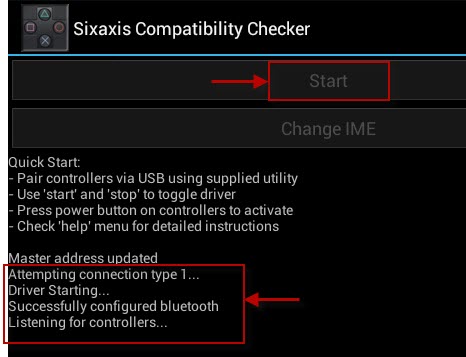
And  now for the final test... Unplug your controller from your tablet. Hit the 'Start' button in the Sixaxis Compatibility Checker, you should get the following message: 


Now press the 'Power' button on your Playstation Controller. You should get the following message:


You should also see this message in the Sixaxis Compatibility Checker:


And thats it folks! Your Playstation Sixaxis Controller is now paired with your device! You can now head over to the Android Market to buy the Sixaxis Controller App!

You can skip Step 5. And go directly to Step 6 - Creating a Touch Screen Profile!  

Happy Days! :-)

STEP 5 - Pairing Using the Sixaxis Pair Tool!

What you need:
  1. A Desktop PC or Laptop.
  2. Your Android Phone or Tablet.
  3. A Playstation Controller USB Cable.
  4. Your Sixaxis Controller.
OK, first off, to be on the safe side, connect your Playstation controller to your PC using the your USB cable and let windows automatically install any drivers.


Then download the Sixaxis Pair Tool set-up file from www.dacingpixelstudios.com, or you can download it directly from here SixaxisPairToolSetup-0.2.3.exe. Once the file has downloaded double click it to launch. Follow ALL instructions to install it correctly.


Once installed open the Sixaxis Pair Tool from your Start Menu. Once open it will display the current Master Address of the Controller:


Open the Sixaxis Compatibility Checker on your device and note the Local Bluetooth Address.


You need to enter the Local Bluetooth Address from your device into the blank field and click Update:


The Current Master should now match the Local Bluetooth Address from your device. 


Congratulations your controller is now Paired! You can close the Sixaxis Pair Tool.

In the next section we are going to create a simple Touch Screen Profile for Asphalt 6, and later a more complicated one for Batman The Dark Knight Rises!